Intercom
The Intercom panel lets the whole timing team talk to each other during the competition — start, finish, call room, scoreboard — by voice and by written messages (the chat). It’s radio over the local network — no server, no code, no password to enter. All stations open on the same competition and connected to the same network find, hear and read each other automatically.
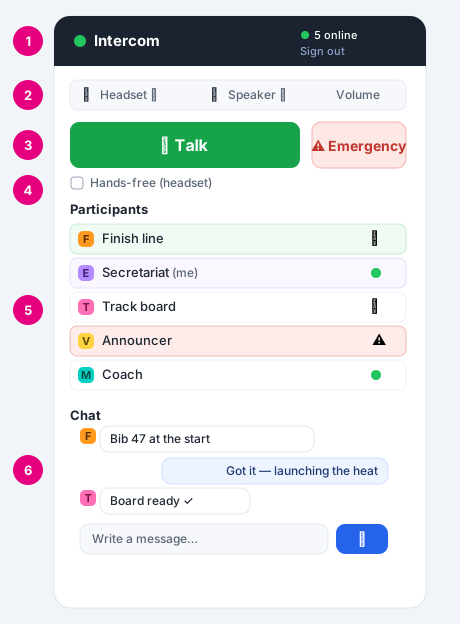
What it's for, and how it works
Where : the Communication panel, on the left of the window (collapsible; in TABLEAU it is anchored in the black area).
The communication room is the name of the competition currently open. Two stations are together as soon as they have opened the same competition: nothing else to set up. As long as no competition is open, the panel shows Waiting for an open competition… and there is nothing to do.
The voice travels peer to peer over the local network (multicast): it does not go out to the Internet and does not pass through any server. Each station hears only the stations in its own room. Several people can talk at the same time — the voices mix, like around a table.
1 Joining and leaving
As soon as a competition is open, the panel shows its name and the Join the communication button. One click and you are online: the other stations in the room appear in the list, and they see you. Until you have joined, nothing is broadcast and no one hears you.
The Sign out button, at the top of the panel, removes you from the room immediately (you disappear from the others' list). Closing the software also removes you right away.
2 Choosing the microphone and the speaker
Where : once connected, at the top of the panel.
- Microphone and Speaker: choose the device to use in each list. The ↻ button refreshes the list if you have just plugged in a headset.
- Volume: sets the listening level of the others, without affecting the Windows volume.
A headset is strongly recommended: it removes the feedback effect (Larsen — the whistling) and allows comfortable hands-free mode.
3 Talking: press to talk
By default (speakers), you talk by pressing to talk: hold down the big Talk button while you speak, release it when you are done. The button turns green while your microphone is open.
While you are talking, you do not hear the others: this is intentional (half-duplex), so that the sound from the speaker does not go back into the microphone and cause feedback. Tick Hands-free (headset) for the continuous mode described below.
4 Hands-free (headset) and muting your microphone
With a headset, tick Hands-free (headset): your microphone stays open permanently, you talk and listen at the same time (full duplex), without holding anything down. This is the ideal mode for a person on the microphone continuously.
In hands-free mode, the big button becomes 🎙 Microphone open — click to mute: one click mutes your microphone when you do not want to be heard (the button turns grey and shows 🔇 Microphone muted — click to open). The other stations then see a icon next to your name: they know you are there but muted. Another click reopens the microphone.
Reporting an emergency
The Emergency button (red) warns everyone of an incident (fall, injury, stop). When it is active, your line turns red for all participants, with a icon. Click again to clear the alert.
5 The list of participants
Each station online appears with its product image (FINISH, EVENT, TABLEAU, VOICE, MAPPING) and its colour, its name and its address on the network. Your own line is followed by (me). The icons on the right:
- this station's microphone is open (it is talking);
- in hands-free mode, this station has muted its microphone;
- this station has triggered the emergency;
- a green dot: the station is online.
A station that is no longer seen for a few seconds (disconnected, switched off, left the competition) disappears from the list on its own.
6 The chat: written messages
Where : at the bottom of the Intercom panel, once connected: the conversation, then the input field.
Alongside the voice, Intercom carries a chat: written messages, handy when you cannot talk (noise in the room, hands busy) or to leave a precise instruction — a bib number, a time, “next one in 5 min”. Type your message in the field and press Enter (or the send button): it goes to every station in the room, instantly.
Like the voice, the chat stays on the local network, in your room only (the competition name). Messages are ephemeral: they scroll by during the competition but are not archived — closing the station clears the conversation.
- Automatic scrolling: on each new message, the conversation moves down to the latest on its own — you always see what has just arrived, without scrolling by hand.
- Your messages, the others’: your own messages stand out at a glance from those of the other stations (different alignment and colour), to follow the exchange without confusion.
- The product image: each message carries the image of the product that sent it (FINISH, EVENT, TABLEAU, VOICE, MAPPING), next to the name. You see at once whether the instruction comes from the finish line (FINISH), the secretariat (EVENT) or the board — the image tooltip recalls the product name.
Troubleshooting
- I don't see anyone: check that the stations have opened exactly the same competition and that they are on the same local network (same Wi-Fi or same switch). A firewall that blocks the local network can prevent discovery.
- It whistles (feedback/Larsen): use a headset, or stay on press-to-talk. Do not put two open speaker stations side by side.
- I can't be heard: check the Microphone selected, and that you are properly holding down Talk (or that the microphone is not muted in hands-free mode).
- I can't hear anything: check the Speaker selected and the Volume.